
Cursor AI: The Developer’s Complete Getting Started Guide
Everything you need to go from download to daily driver — tab completion, inline editing, Composer, context features, model selection, and the habits that separate fast teams from slow ones.
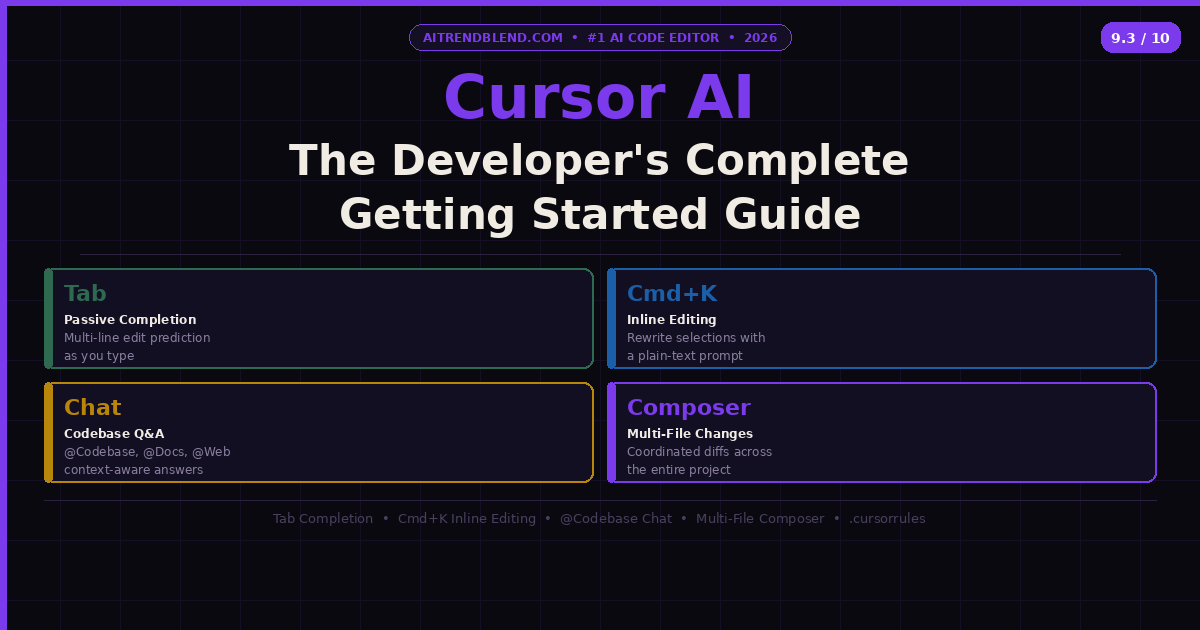
The editor has been around since 2023, but 2025 and 2026 have been breakout years for it. Teams that adopted it early are shipping noticeably faster. The productivity gains aren’t mythological — they’re specific and they come from specific features used in specific ways. And they’re also not automatic. Plenty of developers install Cursor, use it like a smarter VS Code for two weeks, and then wonder what all the fuss is about.
This guide is designed to close that gap. It covers the four main interaction modes (Tab, Cmd+K, Chat, and Composer), how to feed Cursor the context it needs to actually understand your project, how to choose the right AI model for each task, privacy settings you should know about before you commit your first codebase to it, and the habits that separate developers who genuinely accelerate with Cursor from those who get marginal gains and move on.
One thing worth setting up front: Cursor is not an autocomplete upgrade. It’s a fundamentally different way of writing code, one where your job shifts from typing to directing. That transition is what this guide is actually about.
What Cursor Is (and What It Isn’t)
Cursor is a code editor built on top of VS Code. It has the same file explorer, the same keybindings, the same extension marketplace, and the same look and feel. If you’ve spent years with VS Code, you’ll feel at home in Cursor within ten minutes. Your settings, themes, and extensions come with you. There’s no learning curve on the editor itself — only on the AI layer that sits on top of it.
What Cursor adds is a set of AI features that are deeply integrated into the editing workflow: a Tab completion system that predicts entire multi-line edits rather than just single tokens, an inline editing shortcut that lets you rewrite selected code by describing what you want, a chat panel that understands your full codebase, and Composer — a mode that can make coordinated changes across multiple files at once based on a single instruction.
What Cursor is not: it’s not an autonomous agent that writes your application for you, it’s not a replacement for reading and understanding code, and it’s not equally useful for every kind of developer work. It shines brightest on implementation tasks — writing boilerplate, translating between patterns, refactoring, generating test cases, and working with APIs you know but haven’t memorized. It’s much less useful for the architectural thinking, the problem definition, and the judgment calls that actually determine whether a piece of software is good. Cursor makes the typing faster. The thinking is still on you.
Installation and Initial Setup
Download Cursor from cursor.sh. It’s available for macOS, Windows, and Linux. The installer is straightforward — no configuration required before launching. When you open it for the first time, Cursor will ask if you want to import your VS Code settings. Say yes. It pulls your extensions, themes, keybindings, and user settings over automatically. This import is reliable enough that most developers end up with an environment that feels identical to their old VS Code within two minutes.
Sign up for a Cursor account when prompted. The free tier gives you 2,000 completions per month and a limited number of premium model requests — enough to evaluate the tool properly, not enough for full-time daily use. Most developers who plan to use Cursor seriously should look at the Pro plan.
- Tab completion (2k/mo)
- Chat and Cmd+K
- 50 slow premium model uses
- Cursor-small for basic tasks
- Unlimited Tab completions
- 500 fast premium model uses/mo
- Unlimited slow premium uses
- Claude Opus 4.6, GPT-4o, and more
- Composer (multi-file editing)
- Privacy Mode available
- Everything in Pro
- Admin dashboard
- Enforced Privacy Mode
- SOC 2 compliance
- SAML/SSO support
The Four Ways to Use Cursor
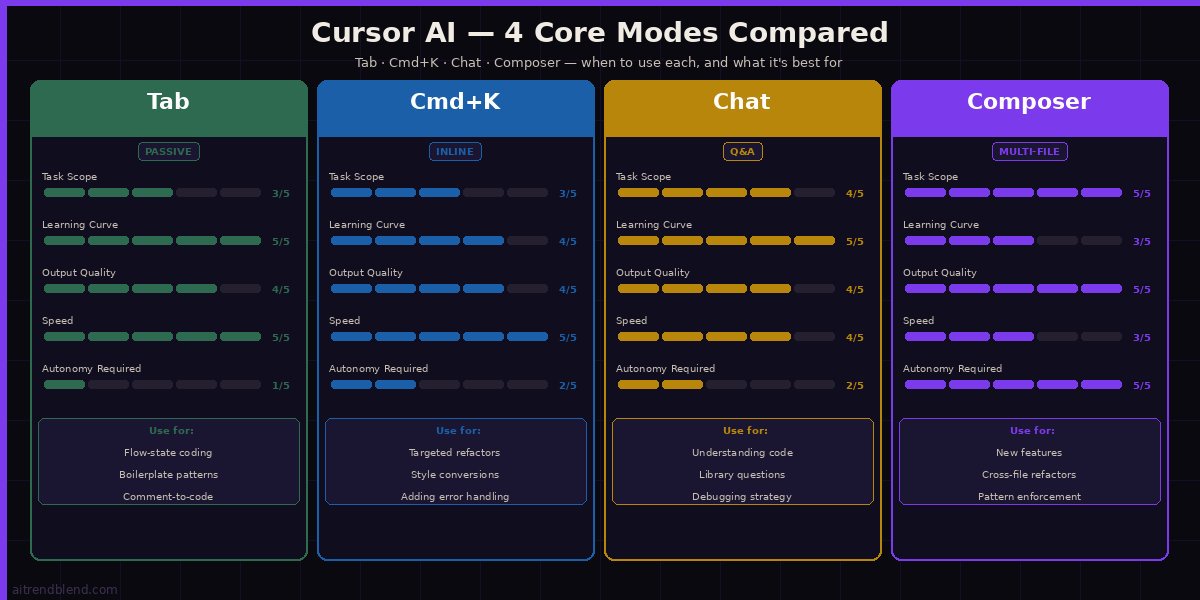
Cursor has four distinct interaction modes. Understanding which one to use and when is the most important skill to develop. Most new users default to Chat for everything, which is like using a Swiss Army knife exclusively for the toothpick. Each mode has a specific job.
1. Tab Completion — The Passive Layer
Tab is Cursor’s most-used feature and the hardest to appreciate until you’ve spent a few hours with it. It’s not standard autocomplete. Where a conventional autocomplete predicts the next token or the end of a line, Cursor’s Tab predicts your entire next edit — sometimes multiple lines, sometimes a refactor across the current function, sometimes the correct import statement that belongs three lines above where your cursor currently is.
The prediction appears as gray “ghost text” that you accept by pressing Tab. If the suggestion isn’t right, you ignore it and keep typing. The model updates as you type. What makes this feel different from regular autocomplete is that Cursor is predicting based on your recent edit history, not just the text before the cursor. If you just renamed a variable in three places, it predicts you probably want to rename it in the fourth place too. If you just wrote a function that follows a particular pattern, it predicts the next function should follow the same pattern.
There’s a specific habit that unlocks Tab’s full potential: write comments before code. When you type a comment describing what a function should do, Cursor often generates the entire implementation as a Tab suggestion. This works especially well for patterns you’ve already used elsewhere in the codebase — Cursor picks up on your conventions and replicates them. You write the intent, it writes the code, you review and accept or correct.
Tab. Accept just the next word with Ctrl+→ (macOS: Cmd+→). Reject the current suggestion by pressing Esc or simply continuing to type. You can also cycle through alternative suggestions with Alt+] / Alt+[ if the first one isn’t what you wanted.
2. Cmd+K — Inline Editing
Cmd+K (Ctrl+K on Windows/Linux) is the feature you reach for when you want to rewrite something you can already see. Select a block of code, press Cmd+K, describe what you want to change in plain English, and Cursor rewrites the selection. The diff appears inline — additions in green, deletions in red — and you accept or reject the whole change with a single keypress.
This is the right tool for targeted refactors, changing the behavior of a function without restructuring the file around it, translating code from one pattern to another, adding error handling to a function that doesn’t have it, and converting between async styles. It’s surgical. You point at the thing that needs to change, describe what the change should be, and review the diff.
# 1. Select the code you want to change (any amount)
# 2. Press Cmd+K (or Ctrl+K on Windows/Linux)
# 3. Type your instruction in the prompt bar that appears:

"Add input validation that throws a TypeError if id is not a positive integer"
"Convert this callback-based function to async/await"
"Add JSDoc comments with @param and @returns"
"Make this function pure — remove all side effects"
"Translate this Python to TypeScript, keeping the same logic"

# 4. Press Enter — Cursor rewrites the selection
# 5. Accept with Ctrl+Y or reject with Ctrl+N
# 6. If partial: accept and refine with another Cmd+K
You can also use Cmd+K without selecting anything to generate new code at the cursor position. Type a description of what you want to insert, and Cursor generates it there. This is useful for generating boilerplate, creating new functions based on a description, or inserting a block of configuration you don’t want to look up.
3. Chat — Your Codebase-Aware Collaborator
The Chat panel (open with Cmd+L or Ctrl+L) is a conversation interface where Cursor has access to your project. Unlike a generic AI chatbot, Cursor Chat can read your files, understand the relationships between them, and answer questions that require knowing how your specific codebase is structured.
Chat is the right tool for questions, not edits. Use it to understand code you’ve inherited, to ask “why does this function behave this way when X,” to get an explanation of a library’s API before you write code that uses it, or to talk through an approach before implementing it. The answers often reference your actual files, which is what makes it useful as a code-understanding tool rather than just a text conversation.
The @ mention system is what gives Chat its power. You can reference specific context by typing @ in the chat input:
4. Composer — Multi-File Changes
Composer (Cmd+I or Ctrl+I) is the most powerful and least intuitive of the four modes. Where Chat answers questions and Cmd+K edits a selection, Composer takes a high-level instruction and makes coordinated changes across multiple files simultaneously. It’s built for the kind of task that would normally require you to open four or five files and carefully edit each one to stay in sync.
Composer is the right tool when the thing you want to do can’t be isolated to a single file. Adding a new API endpoint that requires a route file, a controller, a model change, a migration, and tests. Renaming a data type that appears throughout the codebase. Adding authentication middleware that touches every protected route. Refactoring a pattern that’s been repeated in twelve places.
# Good Composer instructions — specific, scoped, testable outcomes

"Add a POST /api/users/logout endpoint. It should invalidate the
current session token in Redis, clear the auth cookie, and return
a 204 No Content response. Add the route, controller method, and
a basic integration test."

"The User type has been renamed to Account across the entire
codebase. Update all TypeScript files in src/ to use Account
instead of User. Don't change string literals, just type
references and imports."

"Add Zod validation to every existing API route handler in
src/routes/. Use the existing validation pattern in src/routes/auth.ts
as a reference."

# Composer shows a diff for each file it wants to change.
# Review each one before accepting. Use "Accept All" only when
# you've checked the changes are correct.
Choosing the Right AI Model
Cursor lets you choose which AI model powers each interaction. The model selector appears in the top-right corner of the Chat and Composer panels. Getting this right matters for both quality and cost — premium model requests are counted against your monthly limit, while cursor-small requests are unlimited.
| Model | Best For | Speed | Request Cost |
|---|---|---|---|
| claude-opus-4-6 | Complex multi-file refactors, nuanced debugging, architecture questions, anything where getting it right matters more than getting it fast | Slower | Premium |
| claude-sonnet-4-5 | Most Composer tasks, Chat questions requiring real reasoning, code generation for non-trivial functions | Fast | Premium |
| gpt-4o | Broad tasks, debugging, and when you want a second opinion — different failure modes than Claude models | Fast | Premium |
| cursor-small | Simple boilerplate, comment generation, single-function tasks, repetitive patterns where correctness is easy to verify | Very Fast | Unlimited |
Tab completion always uses Cursor’s own model — you don’t choose the model for Tab. The model selector only affects Chat and Composer. In practice, most developers use claude-sonnet-4-5 or gpt-4o for daily Composer work and reserve claude-opus-4-6 for the sessions that involve genuinely complex decisions about how code should be structured.
Context Management: The Skill That Actually Determines Quality
Here’s the thing most Cursor tutorials skip over: the quality of what Cursor produces is almost entirely determined by the quality of the context it receives. A mediocre prompt with excellent context produces good output. An excellent prompt with poor context produces output that sounds confident and is subtly wrong for your specific situation.
Cursor has a few built-in tools for managing context, and using them deliberately is what separates the developers who get frustrating results from the ones who feel like they’ve hired a teammate.
The .cursorrules File
Create a file called .cursorrules in the root of your project. This file contains instructions that Cursor includes in every Chat and Composer request — it’s the project-level system prompt. Use it to describe your stack, your coding conventions, your naming patterns, and any constraints that apply to every piece of code in the project.
# Project: CustomerPortal — Next.js 14, TypeScript, Prisma, tRPC

STACK
- Framework: Next.js 14 with App Router
- Language: TypeScript (strict mode)
- Database ORM: Prisma with PostgreSQL
- API layer: tRPC v11
- Auth: NextAuth.js v5
- UI: shadcn/ui + Tailwind CSS

CONVENTIONS
- All files use named exports, never default exports
- Server components by default; add "use client" only when required
- All database access through Prisma — never raw SQL
- Error handling: throw typed errors (src/lib/errors.ts), never string errors
- All tRPC procedures must have Zod input validation
- Test files: co-located with source, named *.test.ts
- No any types — use unknown and narrow

NAMING
- Components: PascalCase in src/components/
- Server actions: camelCase, suffixed with Action (e.g. createUserAction)
- Database models: PascalCase (mirrors Prisma schema)
- API routes: kebab-case

DO NOT
- Use pages/ router — we are fully on App Router
- Add new dependencies without asking first
- Use console.log in production code — use the logger in src/lib/logger.ts
- Generate placeholder data with Math.random() — use the factories in src/test/
A well-written .cursorrules file means you don’t have to repeat “we use App Router, not pages router” in every Composer session. It means generated code uses your error handling pattern rather than a different one. It dramatically reduces the back-and-forth of correcting output that’s technically correct but wrong for your project.
Pinning Files and Using @Codebase Strategically
For Chat sessions focused on a specific part of your code, use @Files to attach the specific files that are relevant. Don’t use @Codebase for everything — it does a semantic search and may not always retrieve what you actually need. When you know which files matter, reference them explicitly.
Index your key libraries with @Docs. Go to Cursor Settings → Features → Docs and add the documentation URLs for the libraries your project depends on. Once indexed, you can reference them in Chat with @React, @Prisma, @NextAuth, and so on. Claude stops hallucinating API details when it has the actual current documentation to work from.
Essential Keyboard Shortcuts
Cursor’s power is mostly accessible through a small set of shortcuts. These are the ones worth memorizing in the first week. Everything else you can look up as needed.
Cursor vs GitHub Copilot: The Honest Comparison
This question comes up constantly, so let’s address it directly. Both tools are legitimate and both have real users who prefer them. The choice depends on your workflow more than on a simple better/worse judgment.
| Feature | Cursor | GitHub Copilot |
|---|---|---|
| Editor | Standalone editor (VS Code fork) | Extension for VS Code, JetBrains, Vim, Neovim |
| Tab completion | ✓ Multi-line, edit-aware predictions | ✓ Strong single and multi-line completions |
| Inline editing (Cmd+K) | ✓ Core feature, highly polished | ~ Copilot Chat can do inline edits |
| Multi-file Composer | ✓ Dedicated Composer mode | ~ Workspace edits in preview (less mature) |
| Codebase context | ✓ Deep @Codebase indexing | ~ Good for open files; less comprehensive |
| Model choice | ✓ Claude Opus 4.6, Sonnet, GPT-4o, etc. | ✗ GPT-4o based; less model flexibility |
| Custom docs (@Docs) | ✓ Index any URL | ✗ Not available |
| GitHub integration | ~ Works with git; no native GH features | ✓ PR summaries, issue context, deep GH integration |
| Enterprise data controls | ✓ Privacy Mode, SOC 2 | ✓ Strong enterprise controls |
| Price | $20/mo (Pro), $40/user (Business) | $10/mo individual, $19/user (Business) |
Choose Cursor if: you want the most capable multi-file editing, you work on complex codebases where context depth matters, you want to choose your AI model, or you prefer a purpose-built AI editing environment over a plugin.
Choose Copilot if: you’re deeply embedded in the GitHub ecosystem, you use JetBrains or another editor Cursor doesn’t support, your team has existing GitHub Enterprise agreements, or you prefer staying with an extension rather than switching editors.
Plenty of developers use both — Cursor for focused coding sessions, Copilot for quick edits in contexts where they’re already in another editor. They’re not mutually exclusive, and they’re both meaningfully good at different things.
Common Mistakes and How to Avoid Them
Mistake 1: Accepting Without Reading
Tab completion and Composer suggestions are fast to accept and fast to introduce bugs. The speed advantage disappears entirely if you have to spend an hour debugging a change you accepted without reading. The habit that prevents this: treat every accepted suggestion as code you wrote. Before accepting a Composer diff, read it the way you’d read a colleague’s pull request. It usually takes thirty seconds and catches the one subtle issue in twenty that would otherwise get through.
Mistake 2: Over-relying on Chat for Editing
Chat is a conversational tool. It answers questions and explains things. It can suggest edits, but applying those edits requires copy-pasting. If you find yourself copying code out of Chat more than twice in a session, switch to Cmd+K or Composer. They’re built for editing and they produce applied diffs, not text you have to manually transfer.
Mistake 3: Not Writing a .cursorrules File
Skipping the .cursorrules file means Cursor doesn’t know your stack, your conventions, or your constraints. It will generate technically correct code that uses the wrong patterns for your project. You’ll spend time correcting those patterns instead of reviewing meaningful output. Thirty minutes writing a good .cursorrules file pays dividends on every Composer session after that.
Mistake 4: Using Composer for Small Changes
Composer is built for multi-file changes. Using it for a single-function rewrite is like driving across the street. Cmd+K is the right tool for changes to a single selection. Composer for anything that touches more than one file, or where you genuinely don’t know how many files the change will touch.
Mistake 5: Giving Context-Free Instructions
Instructions like “refactor this” or “make this better” produce generic changes. Instructions like “refactor this function to remove the nested conditional logic by early-returning when the input is invalid” produce targeted, useful changes. Cursor responds to specificity the same way any capable developer would — the clearer you are about the outcome you want, the more precisely it produces it.
“The fastest Cursor users aren’t the ones typing the least. They’re the ones writing the clearest instructions and reviewing the output the most carefully.” — Editorial observation, aitrendblend.com
Feature Comparison Chart
Privacy and Security: What You Need to Know
Cursor sends your code to AI providers to generate completions. That’s how it works. For most personal projects and open-source codebases, this is a non-issue. For codebases that contain proprietary algorithms, customer data, API keys, or anything your organization considers confidential, you need to make a deliberate decision about Privacy Mode before you open the project.
Privacy Mode (Settings → Cursor → Privacy Mode → Enable) prevents your code from being stored on Cursor’s servers and from being used for model training. Your code is still sent to the AI provider (Anthropic or OpenAI) to generate the response, but it’s not retained. If your organization requires zero data retention even at the inference provider level, you can use Cursor with your own API keys for supported models — the code goes through Cursor’s infrastructure minimally in this configuration.
.env file before working on it in Cursor, or add the file to .cursorignore (same syntax as .gitignore) to exclude it from Cursor’s indexing entirely.
Building Productive Habits With Cursor
The developers who get genuinely fast with Cursor share a few practices that aren’t obvious from the documentation.
Write your intent as comments first. Before implementing a function, write a comment block describing what it should do, its parameters, and its expected behavior. Tab completion then generates the implementation. This produces better code than “write a function that does X” as a Cmd+K instruction, because the comment gives Cursor more structure to work from. It also leaves the comment in the code, which is usually worth having anyway.
Use Composer at the start of a feature, not the middle. Composer works best when it has a clean scope. Starting a new feature from a Composer prompt — “create a user invitation system with an invite model, send-invite mutation, and accept-invite page” — produces more coherent output than asking it to retrofit something into partially written code. Use it to lay the structure, then use Cmd+K and Tab to fill in details.
Keep Composer sessions short and scoped. One focused instruction per Composer session produces better results than a long instruction with five requirements. Break large feature work into multiple Composer sessions, each with a single clear goal. Accept, verify, and commit before starting the next session.
Maintain a test suite and run it after Composer sessions. Cursor is very good at generating code that looks correct and occasionally has subtle logic errors. A test suite that you run after every Composer acceptance is your safety net. If you don’t have tests, Composer’s multi-file editing power becomes a liability as much as a strength.
You Have Everything You Need to Start
Cursor’s productivity gains don’t show up on day one. They show up in week two, when you realize you’ve written three times as much code as usual and spent more of your time reviewing and directing than typing. The friction of learning the four modes and when to use each one is real but short — most developers are comfortable with the full feature set within a week.
The single most useful thing you can do in your first hour is write the .cursorrules file for a project you’re actively working on. It forces you to articulate your project’s conventions and constraints in a way that immediately improves the quality of everything Cursor produces for that project. Start there. The rest follows quickly.
Cursor is #1 in our 2026 AI coding tools ranking not because it has the most features or the cheapest pricing, but because it gets the interaction model right. The four modes map cleanly to the four kinds of work developers actually do: flow-state typing (Tab), targeted rewrites (Cmd+K), understanding and questioning (Chat), and coordinated feature work (Composer). That clarity of design is why it feels natural within days and indispensable within weeks.
Download Cursor and Get Started Today
Free plan available. Your VS Code settings, extensions, and keybindings import automatically.
This article is independent editorial content produced for aitrendblend.com. It is not affiliated with, sponsored by, or endorsed by Anysphere (Cursor’s developer). All opinions, ratings, and analysis are the original work of the aitrendblend.com editorial team.