
Claude Opus 4.6: The Developer’s Complete Getting Started Guide
Everything you need to build production-ready applications with Anthropic’s most capable model — from your first API call to function calling, streaming, and deployment.
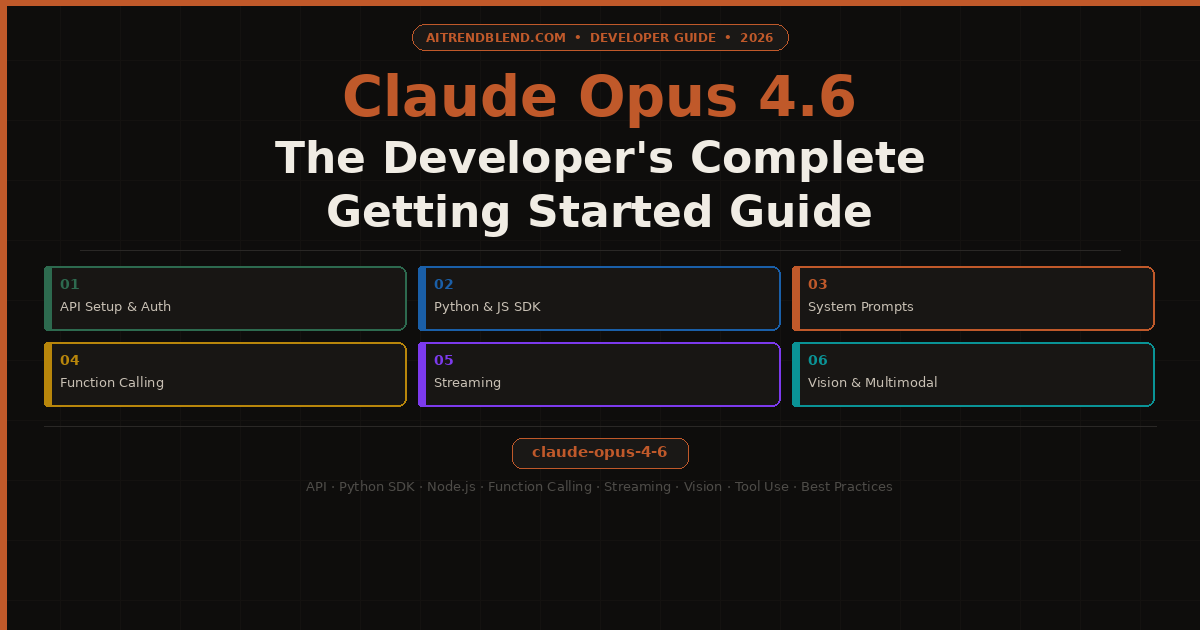
Claude Opus 4.6 is Anthropic’s most powerful model in the current lineup. It’s the one you reach for when the task genuinely demands deep reasoning — complex code generation, nuanced document analysis, multi-step planning, or anything where a cheaper, faster model keeps getting things subtly wrong. It’s not the right tool for every job, and this guide will be honest about when it is and when it isn’t.
What this guide covers: setting up your environment, getting your API key, making your first call in Python and Node.js, understanding the core parameters that shape Claude’s behavior, writing effective system prompts, using function calling and tool use, streaming responses, handling vision inputs, and deploying responsibly. By the end, you’ll have a clear mental model of how Claude’s API works and enough working code to build on top of it immediately.
One thing worth saying upfront: the Anthropic API is genuinely well-designed. Once you understand the message structure and a few key concepts, things that seem complicated in the docs become intuitive quickly. The learning curve is not steep — it just requires reading the right things in the right order, which is exactly what this guide does.
What Makes Claude Opus 4.6 Different
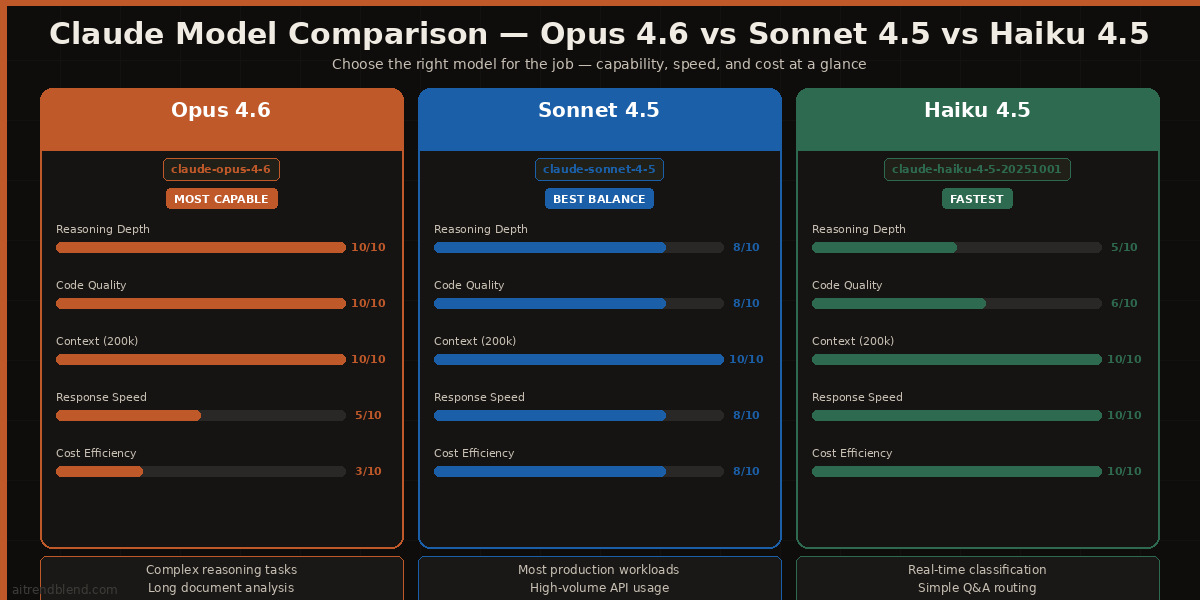
Before writing any code, it’s worth spending a moment on why Claude Opus 4.6 exists as a distinct model — and what that means for you as a developer. The Claude model family is structured around a deliberate trade-off between capability and cost/speed.
The honest decision framework: use Opus 4.6 when the task has genuine complexity — when there are multiple valid approaches and the model needs to reason about which one is correct, when context is long and interconnected, or when quality failures have real costs. Use Sonnet 4.5 for most production applications. Use Haiku 4.5 for high-volume, low-complexity tasks where latency matters.
Claude Opus 4.6 has a 200,000-token context window. That’s roughly 150,000 words — enough to fit an entire codebase, a lengthy legal document, or an entire book. For developers, this matters most when building applications that need to reason across large amounts of source material in a single call.
claude-opus-4-6. Anthropic occasionally releases point versions, so check the docs if you want the absolute latest. In most cases, claude-opus-4-6 routes to the current stable version automatically.
Setting Up Your Environment
Getting set up takes about ten minutes if you follow these steps in order. Doing them out of order — especially trying to install the SDK before you have a key — is where most beginners waste time.
Step 1: Get Your API Key
Go to console.anthropic.com and sign in. Navigate to API Keys in the left sidebar. Click Create Key, give it a descriptive name (something like “dev-local” or your project name), and copy it immediately. Anthropic only shows the full key once. If you miss it, you’ll have to create a new one.
Step 2: Install the SDK
Anthropic publishes official SDKs for Python and TypeScript/JavaScript. These are the ones to use. Third-party wrappers exist but they lag behind the official API and aren’t worth the compatibility headaches.
# Python (requires Python 3.8+)
pip install anthropic

# Node.js / TypeScript (requires Node 18+)
npm install @anthropic-ai/sdk

# Verify Python installation
python -c "import anthropic; print(anthropic.__version__)"
Step 3: Set Your API Key as an Environment Variable
# Add to ~/.bashrc or ~/.zshrc for persistence
export ANTHROPIC_API_KEY="sk-ant-your-key-here"

# Or use a .env file with python-dotenv in Python projects
echo "ANTHROPIC_API_KEY=sk-ant-your-key-here" > .env
echo ".env" >> .gitignore
ANTHROPIC_API_KEY environment variable. You don’t need to pass it explicitly in your code unless you’re managing multiple keys or want to override the environment variable for specific calls.
Your First API Call
Let’s skip the “hello world” version and go straight to a call that shows you the actual structure you’ll use in a real application — with a system prompt, a user message, and proper error handling.
Python
import anthropic
import os

# Client picks up ANTHROPIC_API_KEY from environment automatically
client = anthropic.Anthropic()

try:
    message = client.messages.create(
        model="claude-opus-4-6",
        max_tokens=1024,
        system="""You are a senior software engineer.
When reviewing code, be specific about the exact line
or pattern causing the issue, and always suggest a fix.""",
        messages=[
            {
                "role": "user",
                "content": "Review this Python function for bugs and performance issues:\n\ndef get_user(users, id):\n    for u in users:\n        if u['id'] == id:\n            return u\n    return None"
            }
        ]
    )

    # The response text lives here
    print(message.content[0].text)

    # Always log token usage in development
    print(f"\n— Input tokens: {message.usage.input_tokens}")
    print(f"— Output tokens: {message.usage.output_tokens}")

except anthropic.APIConnectionError as e:
    print(f"Connection error: {e}")
except anthropic.RateLimitError as e:
    print(f"Rate limit hit — back off and retry: {e}")
except anthropic.APIStatusError as e:
    print(f"API error {e.status_code}: {e.message}")
Node.js / TypeScript
import Anthropic from '@anthropic-ai/sdk';

const client = new Anthropic.Anthropic();
// ANTHROPIC_API_KEY read from process.env automatically

async function reviewCode(code: string): Promise<string> {
  const message = await client.messages.create({
    model: 'claude-opus-4-6',
    max_tokens: 1024,
    system: 'You are a senior software engineer. Be specific and actionable.',
    messages: [
      {
        role: 'user',
        content: `Review this code:\n\n${code}`
      }
    ]
  });

  // Extract text from the response content block
  const block = message.content[0];
  if (block.type !== 'text') throw new Error('Unexpected response type');
  return block.text;
}

reviewCode('function add(a, b) { return a - b; }')
  .then(console.log)
  .catch(console.error);
Run either of these and you’ll see Claude Opus 4.6 identify that the function has a bug (a - b instead of a + b), explain why, and suggest the fix. That’s the core loop: system prompt sets behavior, user message provides the task, response is in message.content[0].text.
Understanding the Core Parameters
The Anthropic API has fewer parameters than OpenAI’s, and that’s a good thing. Each one has a clear purpose. Understanding them properly will save you a lot of frustration when output doesn’t behave as expected.
| Parameter | Type | What It Does | Recommended Starting Value |
|---|---|---|---|
model |
string | Which Claude model to use. Always specify this explicitly — don’t rely on defaults. | "claude-opus-4-6" |
max_tokens |
integer | Maximum tokens in the response. Claude stops generating at this limit — it doesn’t truncate mid-sentence, it just stops. Required field. | 1024 for most tasks; 4096+ for long outputs |
temperature |
float 0–1 | Controls randomness. Lower = more deterministic and focused. Higher = more varied and creative. Default is 1. | 0 for code and factual tasks; 0.7 for creative writing |
system |
string | Sets Claude’s role, constraints, and behavior for the entire conversation. Processed before any user messages. | Always set this in production — it dramatically improves consistency. |
messages |
array | The conversation history. Must alternate between user and assistant roles. Always starts with a user message. |
One user message for single-turn; full history for multi-turn. |
top_p |
float 0–1 | Alternative to temperature. Controls the probability mass considered. Usually leave this as default unless you have a specific reason. | Leave unset unless needed |
stop_sequences |
array of strings | Custom strings that cause Claude to stop generating. Useful for structured output parsing where you need a clean termination point. | ["###", "END"] for structured outputs |
message.usage.input_tokens and message.usage.output_tokens during development so you understand what each call actually costs before it hits your bill.
System Prompts: The Developer’s Most Powerful Lever
If there’s one thing that separates applications that feel polished from ones that feel like raw API calls dressed up in a UI, it’s the system prompt. A well-written system prompt is the difference between a model that does something vaguely useful and one that behaves like a genuine specialist for your specific use case.
The system prompt runs before every message in the conversation. It sets the model’s persona, constraints, output format preferences, and any domain-specific knowledge you want it to carry. Think of it as the briefing you’d give a very capable contractor on their first day — the clearer and more complete the brief, the better the work.
SYSTEM_PROMPT = """You are CodeGuard, a senior software engineer specializing
in Python and JavaScript code review. Your role is to review code submitted
by developers and provide structured, actionable feedback.

BEHAVIOR RULES:
- Always identify the specific line number or function where an issue exists
- Distinguish between bugs (must fix), performance issues (should fix),
  and style suggestions (optional)
- If code is correct and well-written, say so clearly — don't invent problems
- Never rewrite entire files unless explicitly asked; focus on the specific issues
- If the code contains a security vulnerability, flag it as CRITICAL at the top

OUTPUT FORMAT:
For every review, use this structure:
1. SUMMARY (one sentence verdict)
2. ISSUES FOUND (each with: severity, location, description, fix)
3. WHAT'S WORKING WELL (brief)

If there are no issues: say "No issues found. Code looks good." and explain why.

TONE: Direct and precise. No filler phrases. No unnecessary preamble."""

message = client.messages.create(
    model="claude-opus-4-6",
    max_tokens=2048,
    system=SYSTEM_PROMPT,
    messages=[{"role": "user", "content": user_code}]
)
Notice what that system prompt does: it defines a persona, gives explicit behavioral rules, specifies an output format, and sets a tone. Each of those is doing real work. Remove any one of them and the output quality drops noticeably. The format section alone is worth the effort — Claude will follow it consistently across hundreds of calls once it’s established in the system prompt.
Function Calling and Tool Use
Tool use (Anthropic’s term for function calling) is where things get genuinely interesting for application developers. It lets Claude decide when to call an external function, what arguments to pass, and then continue the conversation once it receives the result. This is the feature that enables real agentic behavior — Claude can interact with APIs, databases, search engines, or any other system you wire up to it.
The mental model: you define a set of tools with names, descriptions, and input schemas. Claude reads the tool descriptions and decides which tool (if any) to call based on the conversation. You execute the tool on your side and send the result back. Claude then uses the result to continue the conversation.
import anthropic
import json

client = anthropic.Anthropic()

# 1. Define your tools
tools = [
    {
        "name": "get_weather",
        "description": "Returns current weather for a given city. Use this whenever the user asks about current weather conditions.",
        "input_schema": {
            "type": "object",
            "properties": {
                "city": {
                    "type": "string",
                    "description": "City name, e.g. 'London' or 'New York'"
                },
                "units": {
                    "type": "string",
                    "enum": ["celsius", "fahrenheit"],
                    "description": "Temperature unit"
                }
            },
            "required": ["city"]
        }
    }
]

# 2. First call — Claude may choose to call a tool
messages = [{"role": "user", "content": "What's the weather like in Tokyo right now?"}]

response = client.messages.create(
    model="claude-opus-4-6",
    max_tokens=1024,
    tools=tools,
    messages=messages
)

# 3. Check if Claude wants to use a tool
if response.stop_reason == "tool_use":
    tool_block = [b for b in response.content if b.type == "tool_use"][0]

    # 4. Execute the tool on your side
    weather_result = get_weather(  # Your real function here
        city=tool_block.input["city"],
        units=tool_block.input.get("units", "celsius")
    )

    # 5. Send the result back to Claude
    messages.extend([
        {"role": "assistant", "content": response.content},
        {
            "role": "user",
            "content": [{
                "type": "tool_result",
                "tool_use_id": tool_block.id,
                "content": json.dumps(weather_result)
            }]
        }
    ])

    # 6. Final call — Claude uses the tool result to answer
    final = client.messages.create(
        model="claude-opus-4-6",
        max_tokens=1024,
        tools=tools,
        messages=messages
    )
    print(final.content[0].text)
else:
    # Claude answered directly without needing the tool
    print(response.content[0].text)
The key thing tool descriptions need to do is tell Claude precisely when to use the tool and what it returns. Vague descriptions produce vague decisions about when to call them. The description is what Claude reads to decide — treat it like documentation for a very literal engineer who will follow it exactly as written.
Streaming Responses
Streaming is the difference between an application that feels fast and one that feels like it’s hanging. Instead of waiting for Claude to generate the full response before returning anything, streaming sends tokens back as they’re generated. For responses longer than a sentence or two, streaming is almost always the right choice for any user-facing application.
import anthropic

client = anthropic.Anthropic()

# Stream the response using a context manager
with client.messages.stream(
    model="claude-opus-4-6",
    max_tokens=2048,
    system="You are a technical writer. Explain concepts clearly and concisely.",
    messages=[{
        "role": "user",
        "content": "Explain how HTTPS works, step by step."
    }]
) as stream:
    # text_stream yields each text chunk as it arrives
    for text in stream.text_stream:
        print(text, end="", flush=True)

    # After streaming, get the full message with usage stats
    final_message = stream.get_final_message()
    print(f"\n\nTokens used: {final_message.usage.output_tokens}")
For web applications, you’d typically stream from your backend to the browser using Server-Sent Events (SSE) or a WebSocket. The pattern is the same: Claude streams to your server, your server forwards chunks to the browser. Most frameworks have built-in support for this — Next.js, FastAPI, and Express all have clean streaming response patterns that work well with Claude’s streaming SDK.
Vision and Multimodal Inputs
Claude Opus 4.6 can analyze images. You can pass images alongside text in the same message, and Claude will reason about both together. This opens up a wide range of practical applications: screenshot analysis, diagram interpretation, document OCR, UI feedback, and image-based question answering.
import anthropic
import base64
from pathlib import Path

client = anthropic.Anthropic()

# Method 1: Pass image as base64
image_data = base64.standard_b64encode(
    Path("screenshot.png").read_bytes()
).decode("utf-8")

message = client.messages.create(
    model="claude-opus-4-6",
    max_tokens=1024,
    messages=[{
        "role": "user",
        "content": [
            {
                "type": "image",
                "source": {
                    "type": "base64",
                    "media_type": "image/png",
                    "data": image_data
                }
            },
            {
                "type": "text",
                "text": "This is a screenshot of a web UI. List every usability issue you can see, from most to least severe."
            }
        ]
    }]
)
print(message.content[0].text)

# Method 2: Pass image via public URL (simpler for publicly accessible images)
message_url = client.messages.create(
    model="claude-opus-4-6",
    max_tokens=1024,
    messages=[{
        "role": "user",
        "content": [
            {
                "type": "image",
                "source": {
                    "type": "url",
                    "url": "https://example.com/diagram.png"
                }
            },
            {"type": "text", "text": "Explain this architecture diagram."}
        ]
    }]
)
Supported image formats are JPEG, PNG, GIF, and WebP. The maximum image size is 5MB per image, and you can include up to 20 images in a single message. Images count toward your context window — a 1024×1024 image costs roughly 1,590 tokens, which is worth factoring into your architecture if you’re sending many images per call.
Multi-Turn Conversations
Building a chat interface or any application where the conversation spans multiple turns requires sending the full conversation history with each request. Claude doesn’t maintain state between API calls — each call is independent. Your application manages the message history.
import anthropic

client = anthropic.Anthropic()
conversation_history = []

def chat(user_message: str) -> str:
    # Add the new user message to history
    conversation_history.append({
        "role": "user",
        "content": user_message
    })

    response = client.messages.create(
        model="claude-opus-4-6",
        max_tokens=1024,
        system="You are a helpful coding assistant. Remember context from earlier in the conversation.",
        messages=conversation_history  # Send full history
    )

    assistant_reply = response.content[0].text

    # Add Claude's reply to history for next turn
    conversation_history.append({
        "role": "assistant",
        "content": assistant_reply
    })

    return assistant_reply

# Example multi-turn conversation
print(chat("I'm building a REST API in Python."))
print(chat("What framework would you recommend?"))
print(chat("Show me how to add authentication to it."))
# Each call correctly refers back to "Python REST API" context
Rate Limits, Pricing, and Production Considerations
Anthropic uses a tiered rate limiting system. New accounts start with conservative limits that increase as you demonstrate usage patterns. Rate limits are enforced on requests per minute (RPM), tokens per minute (TPM), and tokens per day (TPD). If you’re hitting limits consistently, contact Anthropic’s sales team — higher limits are available for production use cases.
The SDK handles transient rate limit errors with automatic retries. By default it retries up to two times with exponential backoff. You can configure this:
client = anthropic.Anthropic(
    # Max retries on 429 and 5xx errors (default: 2)
    max_retries=3,

    # Request timeout in seconds (default: 600)
    timeout=anthropic.Timeout(
        connect=5.0,   # Connection timeout
        read=120.0,    # Read timeout (large for long responses)
        write=10.0,    # Write timeout
        pool=5.0       # Connection pool timeout
    )
)
Cost Management
Claude Opus 4.6 is priced per million tokens. As of early 2026, input tokens cost more than output tokens — check the current pricing on anthropic.com/pricing since rates change. For cost management in production, the most effective levers are: choosing the right model for each task (don’t use Opus for tasks Sonnet handles equally well), caching repeated system prompts using prompt caching, and monitoring token usage per request to catch bloated prompts.
Common Mistakes and How to Avoid Them
Mistake 1: Using Opus When Sonnet Would Do
Opus 4.6 is not always better — it’s more capable for complex reasoning, but for tasks like summarization, classification, simple Q&A, or formatting, Sonnet 4.5 produces equally good results at significantly lower cost and latency. Default to Sonnet in your initial build and upgrade to Opus for specific steps that demonstrably need it.
Mistake 2: Vague System Prompts
“You are a helpful assistant” is not a system prompt — it’s a placeholder. Every production application deserves a system prompt that specifies the exact behavior, output format, and edge case handling you expect. Thirty minutes writing a good system prompt saves hours of debugging inconsistent outputs.
Mistake 3: Not Handling the tool_use Stop Reason
When you define tools, Claude can return with stop_reason: "tool_use" instead of "end_turn". If your code only handles end_turn, tool use calls will silently fail or raise exceptions. Always check stop_reason before accessing message.content[0].text.
Mistake 4: Hardcoding Model Strings
Put your model string in a configuration variable, not scattered across your codebase. When Anthropic releases a new version, you want to update one line, not twenty.
Mistake 5: Sending the Entire Database as Context
The 200k context window does not mean you should fill it with everything you have. Larger context costs more and can actually dilute Claude’s focus on what matters. Retrieve only the relevant context for each call. Build a retrieval layer — even a simple keyword search — rather than sending the whole knowledge base every time.
“The best Claude integrations aren’t the ones with the most complex prompts. They’re the ones where the developer has taken the time to define exactly what ‘good output’ looks like and taught the system prompt to produce it.” — Editorial note, aitrendblend.com
What to Build Next
The patterns in this guide cover the fundamental building blocks of almost every Claude-powered application. Once you’re comfortable with them, the next step is combining them into something more complete. A few patterns that work especially well with Claude Opus 4.6 given its reasoning depth:
Agentic code review pipelines — Claude reads a pull request, identifies issues using tool use to look up relevant documentation or run linters, and posts structured review comments. The combination of deep code understanding and tool access makes this genuinely useful rather than superficial.
Document intelligence applications — Pass PDFs, contracts, research papers, or long reports through Claude’s 200k context window with structured output requirements. Claude can extract specific fields, identify contradictions across sections, or summarize at different levels of granularity on request.
Customer support with escalation logic — Use Haiku for initial message classification and simple FAQ responses, Sonnet for most support interactions, and Opus only for escalated complex cases. Tool use lets Claude look up order status, account details, or knowledge base articles mid-conversation. The three-tier model structure maps naturally to support triage.
The Anthropic documentation at docs.anthropic.com is comprehensive and well-maintained. The cookbook section has working code examples for patterns beyond what’s covered here: computer use, extended thinking, batch processing, and prompt caching. Start there when you hit something this guide doesn’t cover.
You’re Ready to Start Building
Claude Opus 4.6 is a genuinely impressive piece of technology, but the API that exposes it is straightforward. The concepts here — message structure, system prompts, tool use, streaming, and model selection — are the ones you’ll return to repeatedly regardless of what you build. Get comfortable with them in a small project before scaling up, and use token logging from day one so cost surprises don’t catch you off guard in production.
The most important habit to build: test your system prompt thoroughly before deploying it. Send it twenty or thirty different inputs, including edge cases and inputs designed to confuse it, and evaluate whether the outputs match what you actually want. A system prompt that works for the ten examples you tested may behave strangely on the eleventh. The more time you spend on this before launch, the less time you spend debugging it after.
The gap between a prototype that works in a notebook and an application that works reliably at scale comes down to error handling, rate limit management, token monitoring, and having a clear answer to “what should happen when Claude gets this one wrong?” None of those are hard to implement — they’re just easy to skip in a hurry. Build them in from the start.
Start Building With Claude Opus 4.6
Get your API key, install the SDK, and have a working integration in under fifteen minutes.
This article is independent editorial content produced for aitrendblend.com. It is not affiliated with, sponsored by, or endorsed by Anthropic. All code examples and analysis are the original work of the aitrendblend.com editorial team.
Explore More on aitrendblend.com
From Claude API deep dives to prompt engineering guides and AI tool comparisons, here is where to go next.