
10 Best Claude Prompts for Building a Full Website From Scratch
Most people use Claude like a fancy search engine. The ones getting full, working websites out of it are doing something very different.
The frustrating thing is that Claude is capable of generating a complete, production-quality website in a single conversation. The gap between “here are some tips” and “here is your working site” comes down almost entirely to how you write the prompt. Vague requests produce vague output. Specific, structured prompts produce specific, structured websites.
Claude has a few genuine advantages over other AI tools when it comes to website building. The Artifacts feature renders HTML and CSS live inside the chat, so you can see what you’re building as you iterate. Claude also tends to write cleaner, more semantic HTML than most competing models, and it handles multi-page site logic more coherently when you give it a full project brief upfront rather than page by page.
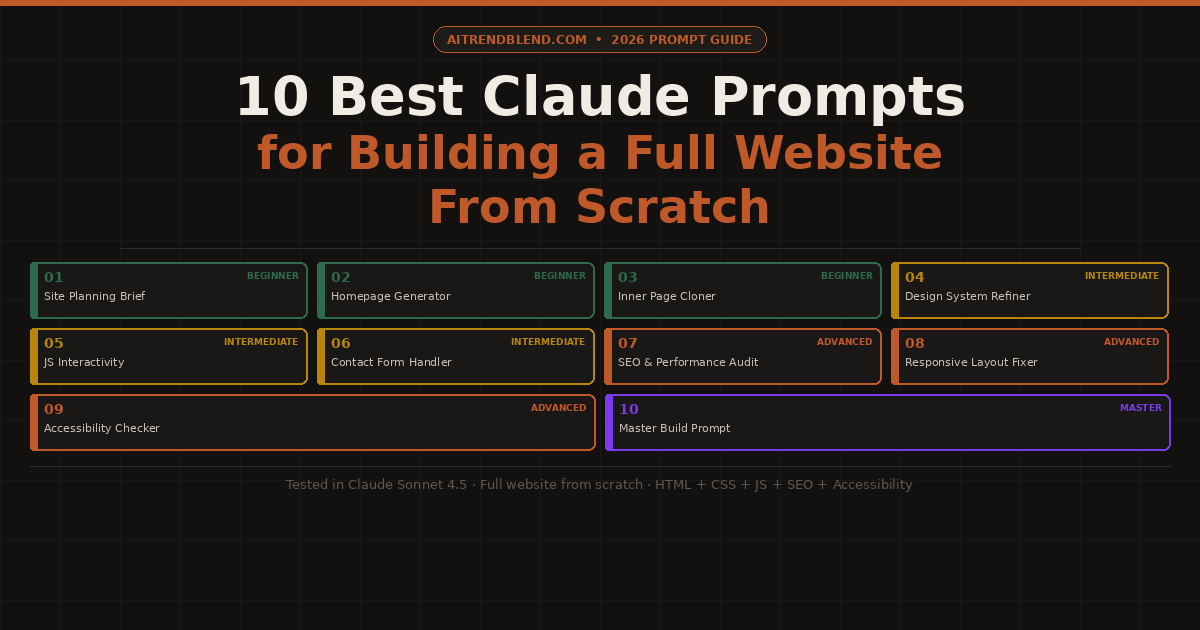
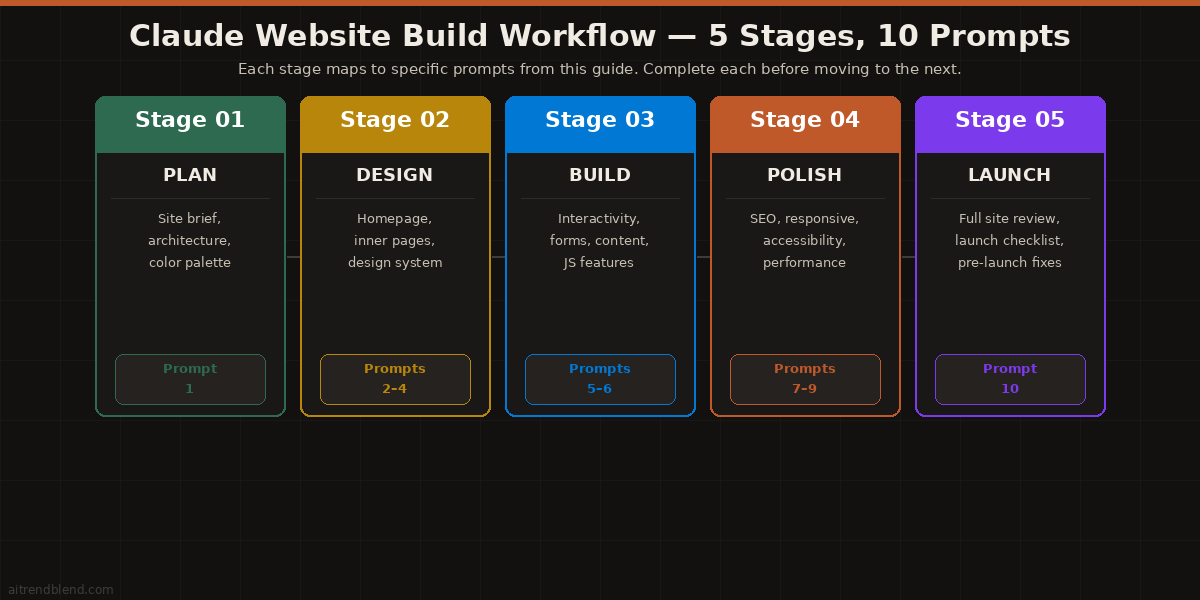
This guide gives you ten prompts that cover the complete arc of building a website from scratch: planning the structure, generating the visual design, writing page by page, adding interactivity, making it mobile-friendly, and polishing it for launch. Each prompt has been tested in Claude Sonnet 4.5. By the end, you will know not just what to ask, but why each prompt is structured the way it is and how to adapt it for your specific project.
Why Claude Is Particularly Good at Building Websites
A lot of AI tools will generate HTML. Claude generates HTML that a human developer would not be embarrassed to read. That distinction matters more than it sounds. Code readability directly affects how easy it is to maintain, customize, and debug a site you’ve built with AI help. Claude consistently uses semantic HTML5 elements correctly, writes CSS that is organized and named logically, and comments its code in a way that explains intent rather than just restating what the code does.
The Artifacts panel is the feature that sets Claude apart for visual work. When you ask Claude to generate a webpage, it opens a side-by-side preview where you can see the rendered result in real time. You can ask it to change the font, shift the layout, adjust colors, or add a new section, and the preview updates immediately. No copy-pasting into an editor, no switching tabs. The feedback loop is fast enough that you can iterate a complete page design in ten minutes rather than an hour.
Where Claude lags behind tools like GitHub Copilot is in large, multi-file project awareness. If you’re building a full React or Next.js application with many components spread across many files, Claude doesn’t have the live codebase access that Copilot has inside VS Code. For the kind of website this guide covers, which is a complete, production-ready static or lightly dynamic site, that limitation doesn’t come into play. For bigger application development, you’d want to combine the planning and design work done in Claude with implementation done in a Copilot-assisted editor.
Before You Start: Setting Up Claude for Website Work
Use claude.ai in your browser for everything in this guide. The web interface gives you access to Artifacts, which is the live preview panel where your HTML renders as you build. If you’re using the Claude API or a third-party integration, you may not have Artifacts available, and you’ll need to copy-paste code into a local editor to see the results.
Choose the right model version. Claude Sonnet 4.5 hits the best balance between speed and code quality for website work. Claude Opus 4.6 produces slightly more thoughtful architectural decisions on complex multi-page sites, but it’s slower and the quality difference for straightforward website builds is minor. For quick mockups and landing pages, even Claude Haiku 4.5 can get you most of the way there.
One practical habit worth building before you type your first prompt: write a one-paragraph brief about the site. Include who it’s for, what it needs to do, what tone it should have (professional, playful, minimal, bold), and any specific pages required. Keep this brief in a text file and paste it at the top of every new Claude conversation about the project. Claude doesn’t remember previous chats, so starting with that context every time prevents it from making different style decisions each session.
The 10 Best Claude Prompts for Building a Full Website From Scratch
Prompt 1: The Site Planning Brief
The most common mistake people make when building a website with Claude is skipping this step. They jump straight to asking for the homepage, and Claude generates something generic because it doesn’t know anything about the site. This prompt gets Claude to think through the whole project before writing a single line of code, and what it produces becomes the reference document for every prompt that follows.
There’s a reason this comes first. A site planning brief made by Claude will catch things you haven’t thought about yet: pages you’ll need that you didn’t mention, design questions that need answers before HTML makes sense, and content structure decisions that affect how the whole site holds together. It’s five minutes of planning that saves an hour of revision.
How to adapt it: If you already have a site map, paste it in and ask Claude to critique it instead: “Here is my planned page structure. Identify any gaps, redundancies, or navigation problems before we start building.”
Prompt 2: The Homepage Generator
Once you have the planning document from Prompt 1, you’re ready to build the homepage. This is the prompt that generates a complete, styled, working homepage in one shot. The key is pasting the planning document output directly into this prompt so Claude builds from the decisions already made rather than inventing new ones that conflict with what came before.
How to adapt it: After Claude generates the homepage, follow up with: “Keep everything exactly the same but change the hero section to use a full-bleed background image with a dark overlay instead of the current solid color background.” Claude will update only that section while preserving the rest.
Prompt 3: The Inner Page Cloner
Here is where most people’s websites start to feel inconsistent. The homepage looks great, but each new page gets generated separately and the fonts drift slightly, the spacing feels different, the footer changes. This prompt solves that problem by making Claude extract the design system from the homepage first and apply it exactly to every new page it builds.
How to adapt it: For a blog or article page, add: “This page will display a list of articles. Include a card grid layout with a thumbnail placeholder, article title, date, excerpt, and a ‘Read more’ link for each card.”
Prompt 4: The Design System Refiner
You’ve got pages built. Some things look right, some things don’t quite work. Maybe the spacing feels off, the button hover states are too subtle, or the mobile layout needs tightening. This is the prompt for a targeted design review, where Claude acts as a critical UI designer who goes through your existing page and tells you specifically what to fix and how.
The reason this prompt works better than just asking “make it look nicer” is the structured review format. When you give Claude specific dimensions to evaluate, the feedback is actionable rather than general. You get precise CSS changes rather than vague suggestions about color and typography.
How to adapt it: Focus the review on a single dimension by removing the others. For example, ask only about mobile experience at multiple screen widths: 320px, 375px, 768px, and 1024px. You’ll get much more detailed mobile-specific feedback than a general review provides.
Prompt 5: The JavaScript Interactivity Builder
A static HTML site gets you a long way, but at some point you need things to move, respond, and remember. Mobile menus, scroll animations, form validation, tab panels, accordions. These are the features that make a site feel finished rather than drafted. This prompt adds a complete interactivity layer to an existing page without touching its HTML structure or CSS design.
How to adapt it: For an e-commerce or product site, swap the feature list for: “An image gallery with a lightbox overlay, a product card that shows an alternate image on hover, and a quantity selector with plus and minus buttons.”
Prompt 6: The Contact Form and Email Handler
Contact forms are one of those things that look simple and turn out to have real depth. Client-side validation, server-side handling, spam protection, success states, error states, accessibility for screen readers. This prompt generates a complete, accessible contact form with thorough client-side validation, ready to be wired to a backend service like Formspree, Netlify Forms, or your own endpoint.
How to adapt it: For a booking or appointment form, replace the field list with your specific booking fields and add: “Include a date picker that blocks weekends and dates in the past, and a dropdown for appointment type with time slots that appear based on the selected type.”
Prompt 7: The SEO and Performance Audit
Most AI-generated websites have good-looking HTML but weak SEO foundations. Missing meta tags, unoptimized heading hierarchies, images without alt text, no Open Graph tags for social sharing. This prompt runs a complete technical SEO and performance audit on a finished page and outputs a corrected version with every issue fixed.
How to adapt it: For local businesses, add: “Add JSON-LD structured data for a LocalBusiness schema including our name, address, phone number, opening hours, and geographic coordinates.” Claude generates accurate, valid JSON-LD markup that helps with Google Business Profile integration.
Prompt 8: The Responsive Layout Fixer
Responsive design is where AI-generated websites fall apart the most. The desktop layout looks polished. Open it on a phone and the text is tiny, the navigation is broken, images overflow the screen. This prompt is specifically designed to fix responsive issues on a finished page without disrupting the desktop design that already works.
How to adapt it: If you need to test a specific problem, describe it directly: “On mobile, my navigation overlaps the hero section when the menu is open. The hero has a z-index of 10. Fix this without removing the hero’s z-index.” Constraint-specific prompts like this get much more targeted fixes than general responsive audits.
Prompt 9: The Accessibility Checker and Fixer
Web accessibility is not optional. It affects real users who rely on screen readers, keyboard navigation, high-contrast modes, and assistive technology. It also affects SEO and legal compliance in many countries. Most AI-generated websites have accessibility problems. This prompt finds them all and produces a corrected version with detailed explanations of every fix.
How to adapt it: If you need a quick check rather than a full audit, ask: “Test only keyboard navigation on this page. Tab through every interactive element and tell me the order, which elements are unreachable by keyboard, and what focus styles are missing.”
Prompt 10: The Master Website Build Prompt
This is the prompt you use when you want to hand Claude a brief and have it build a complete, multi-section, fully polished website in one go. It combines site planning, design system definition, page generation, interactivity, and SEO setup into a single structured prompt with explicit stage gates. The output after one conversation is a website you can put in front of real visitors.
How to adapt it: For an e-commerce site, add a Stage 5: “Build a product listing page with a card grid, a product detail page with image gallery, price, description, and an ‘Add to Cart’ button (static UI only), and a cart sidebar that opens from the nav.”
“The best websites built with Claude aren’t the ones where you asked for the most. They’re the ones where you told Claude the most before you asked for anything.” — Editorial principle, aitrendblend.com
Common Mistakes When Building Websites With Claude
These are not theoretical. They are the patterns that come up repeatedly when people get inconsistent or disappointing results from Claude for website work.
Mistake 1: One Big Vague Prompt
“Build me a full website for my restaurant” is not enough information to produce a good result. Claude doesn’t know your menu, your neighborhood, your vibe, your opening hours, or your audience. Vague briefs produce generic output. The planning prompt in this guide exists specifically because getting the brief right is more valuable than any individual code prompt.
Mistake 2: Letting Design Drift Between Pages
Each new page generated without referencing the previous one will look slightly different. The font size might shift by 2px. A button’s border radius changes. The footer gets a new layout. Over four or five pages, these small differences add up to a site that feels inconsistent and unfinished. Always paste the previous page’s CSS or the full code as context when generating a new page.
Mistake 3: Asking for Changes Instead of Fixes
There is a real difference between “make the hero section more engaging” and “the hero section’s headline is too small at mobile sizes and the CTA button doesn’t have enough contrast against the background. Fix both.” The first prompt invites Claude to reinvent things you liked. The second tells it exactly what is broken and what needs to change.
Mistake 4: Forgetting That Claude Can’t See Your Screen
Claude generates code based on what you describe and what you paste. If the layout looks wrong and you say “the layout is broken,” Claude is guessing at what “broken” means. Paste the relevant code and describe the specific problem: which element, at which screen size, doing what wrong. Specific bug reports produce specific fixes.
Mistake 5: Skipping the SEO and Accessibility Prompts
A site that looks good in the browser preview but has no meta description, missing alt text, and broken keyboard navigation is not a finished site. Prompts 7 and 9 in this guide are not optional polish steps. They are the difference between a demo and something you’d actually put your name on.
| Wrong Approach | Right Approach |
|---|---|
| “Build me a website for my business” | Use Prompt 1 to create a full planning brief first, then Prompt 2 for the homepage with the brief pasted in as context. |
| Generating each page from scratch in a new conversation | Paste the previous page’s complete code at the top of each new page prompt and instruct Claude to match it exactly. |
| “Make it look better / more modern / more professional” | Use Prompt 4 to get a scored design audit with specific CSS fixes identified for each problem area. |
| Publishing the site as soon as it looks good in Artifacts | Run Prompt 7 (SEO audit) and Prompt 9 (accessibility check) before launch, then fix every high-severity issue. |
| “The mobile layout is broken, fix it” | “On iPhone 14 size (390px), the navigation menu items stack vertically instead of collapsing to a hamburger. Paste the relevant CSS section here: [code].” |
What Claude Still Struggles With
Claude is the best AI tool for writing clean, semantic HTML and well-structured CSS. It is not the best tool for every part of the website-building process, and knowing where it falls short saves you time spent chasing problems you won’t be able to fix with a better prompt.
Complex animations are genuinely difficult for Claude to get right. Simple CSS transitions, scroll-triggered fades, and hover effects work well. Anything that requires precise timing, sequenced animations across multiple elements, or SVG path animations tends to produce output that works inconsistently across browsers or has subtle timing bugs that are hard to diagnose and fix through chat. For animation-heavy sites, generate the layout and design in Claude and use a dedicated animation library like GSAP or Motion One for the motion layer.
Dynamic backend features are outside Claude’s scope for HTML generation. If your site needs user accounts, a database, a content management system, a payment flow, or server-rendered pages, Claude can design the UI and generate the HTML templates, but it cannot build you a working backend in static HTML. You’d need to pair Claude’s frontend output with a backend tool or platform like Supabase, Firebase, or a headless CMS. Claude will tell you this honestly if you ask, but it’s worth knowing before you start expecting things it can’t deliver.
Finally: Claude can generate stock image placeholder descriptions and CSS gradient backgrounds, but it cannot create or source actual images for your site. Every image in a Claude-built website needs to come from you, from a stock photography service, or from an AI image generator used separately. This sounds obvious but comes up constantly when people wonder why their “complete website” has no actual photography in it.
What You Can Build Now That You Couldn’t Before
Ten prompts sounds like a lot. In practice, most websites only need four or five of them: the planning brief, the homepage, one or two inner pages, and either the SEO audit or the responsive fixer depending on your priorities. The others exist for specific situations that come up as a site grows more complex. Start with Prompts 1, 2, and 3. You’ll know when you need the rest.
The underlying pattern across all ten of these prompts is the same: give Claude a reference before asking it to create something new. A site plan before the homepage. The homepage before each new page. The existing code before asking for changes. The more reference material Claude has, the less it has to invent from scratch, and the less invention there is, the more consistent and usable the output becomes. That’s not a limitation of Claude. It’s how good design collaboration works between humans, too.
There’s an honest limit to what these prompts can do that’s worth naming. Claude can build a complete, good-looking, accessible, SEO-optimized website. It cannot make the strategic decisions that determine whether that website succeeds. Who the audience really is. What message will actually convert visitors. Whether the site needs a blog or a portfolio or a booking system. Those decisions require someone who understands the business, not just the code. Use Claude to build fast. Use your own judgment to build right.
Where this is heading is genuinely exciting. Claude’s ability to iterate on a live preview in Artifacts already makes it faster than many traditional workflows. As AI tools gain better memory across sessions and tighter integration with hosting platforms, the gap between “generate this in Claude” and “deploy this to a real URL” will close. The developers who know how to prompt well now will be the ones who take advantage of that shift first. That gap is already smaller than most people think.
Start Building Your Website Now
Open Claude, start with Prompt 1, and have a complete site plan in under five minutes. The homepage follows from there.
This article is independent editorial content produced for aitrendblend.com. It is not affiliated with, sponsored by, or endorsed by Anthropic. All prompt frameworks and examples are the original work of the aitrendblend.com editorial team.
Explore More on aitrendblend.com
From deep AI research breakdowns to hands-on prompt engineering guides, here is where to go next.