
Seven AI tools can now take a plain-language description of a website and produce something functional, deployable, and genuinely usable — sometimes in under five minutes. This is not about drag-and-drop templates. We tested each tool on real projects, compared actual outputs, and ranked them honestly. Here is exactly which one to use for your situation.
A few years ago, asking “can AI build a website for me?” was mostly theoretical. The tools that tried were impressive for demos and useless for shipping. The outputs were brittle, the code was unsalvageable, and the gap between “AI-generated” and “production-ready” was too wide to bridge without a full development team.
That gap has closed. Not all the way — but enough to matter. The best AI web-building tools available today can produce real React applications, full-stack CRUD apps, marketing sites, and portfolios from a single prompt, and then let you iterate in plain language until the result is what you actually wanted. The question is no longer whether AI can build websites. The question is which tool you should reach for, and for what kind of project.
The answer depends almost entirely on one variable: how much code you want to control. If you are a non-developer who needs a business site live by Friday, that points to one set of tools. If you are a developer who wants AI to handle the tedious scaffolding while you stay in control of the architecture, that points somewhere else entirely. This guide maps that territory clearly — seven tools, tested on real builds, evaluated without hype.
How We Evaluated These Tools
Each tool was tested on three identical briefs: a simple marketing landing page, a multi-page portfolio site with a contact form, and a basic SaaS dashboard with authentication and a data table. The outputs were evaluated on four criteria: code quality (could a developer work with it?), design quality (would a real user trust it?), iteration speed (how many rounds of prompting to get to acceptable?), and deployment readiness (how close to live was the first output?).
Pricing is noted as of mid-2026 — check each tool’s current page before committing, since this space moves fast. No tool in this guide paid for its placement.
No single tool wins across all project types. The right tool depends on your technical background, your timeline, and whether you need the code to be maintainable long-term or just functional right now.
The 7 Best AI Tools for Building a Website from Scratch
1. Bolt.new — Best Overall for Non-Developers
⭐ Editor’s PickBolt.new is the closest thing available to a true “describe it, get it” web builder. You type a prompt describing what you want — a recipe-sharing platform, a project management tool, a SaaS pricing page — and within two minutes you are looking at running code in a browser preview. Not a mockup. Not a wireframe. A real application with working navigation, routing, and often a connected backend.
The technology underneath is StackBlitz’s WebContainers, which run a full Node.js environment directly in the browser. That means Bolt can generate, install dependencies for, and run a React or Next.js application without you touching a terminal. For a non-developer, that is the whole game. The first output is rarely perfect, but the iteration loop — typing in plain English what you want changed — closes most of the gap quickly.
Build me a freelancer portfolio website with:
- A hero section with my name, role, and a CTA button
- A projects grid showing 6 project cards with image, title, and tags
- A skills section with progress bars
- A contact form with name, email, and message fields
- Dark mode toggle in the nav

// Use React with Tailwind CSS. Make it mobile responsive.
// The colour scheme should be dark navy with amber accents.
// No backend needed — contact form can show a success message on submit.
Where Bolt genuinely stands out is in its handling of iteration requests. “Make the hero section taller and center the text,” “change the card layout to a masonry grid,” “add a loading spinner to the submit button” — these work reliably, and the changes land in the preview within seconds. The code it generates is readable, component-structured, and largely follows modern React conventions. A developer inheriting a Bolt project is not starting from chaos.
- Full React app from a single prompt
- Live browser preview with no setup
- One-click deploy to Netlify or Vercel
- Supabase integration for database + auth
- Readable, structured code output
- Strong plain-English iteration
- Complex apps hit context limits — breaks into pieces
- Struggles with precise pixel-level design control
- Free tier has token limits that expire quickly
- Not ideal for heavy backend logic or microservices
- Design quality is functional, not always polished
If you are not a developer and you need a real, working website or web app, start here. Bolt.new has the best balance of ease-of-use, output quality, and deployment speed of any tool in this guide.
2. Lovable — Best for Production-Ready React Apps
Top Pick · App DevelopmentLovable sits slightly closer to the developer end of the spectrum than Bolt.new — not because it requires coding knowledge, but because its outputs are more opinionated and its GitHub integration makes it genuinely viable for team-based development. Describe your application, and Lovable generates a clean TypeScript React project that syncs directly to your GitHub repository. From there, a developer can clone it and continue building in a conventional workflow.
The difference is most visible with CRUD applications. Feed Lovable a prompt for a project management tool with tasks, columns, and user assignments, and it produces something structurally coherent — proper component separation, consistent state management, a Supabase backend with real authentication. Bolt and Lovable are comparable for simple sites; Lovable pulls ahead when the application logic gets more complex.
Create a task management web app called "TaskFlow":

// Authentication
- Email + password signup and login via Supabase Auth
- Protected routes — redirect unauthenticated users to /login

// Core features
- Dashboard showing all projects as cards
- Each project has a kanban board: To Do, In Progress, Done columns
- Tasks can be dragged between columns
- Each task has: title, description, due date, assigned user, priority (Low/Medium/High)

// Design
- Clean, minimal design — white background, blue accent (#3B82F6)
- Sidebar navigation with Projects, My Tasks, Settings
- Responsive — works on tablet and mobile

// Tech stack: React + TypeScript + Tailwind + Supabase
The build quality from this kind of prompt is genuinely impressive. Not every component is production-perfect — you will still need a developer to review the Supabase schema and tighten up error handling — but the structural foundation is real. That is the key distinction: Lovable gives you a foundation worth building on, not a demo worth throwing away.
- GitHub sync — works in real team workflows
- TypeScript output — developer-friendly
- Strong Supabase integration for auth + database
- Good with complex multi-page app structure
- Clean component architecture in output
- Heavier token usage than Bolt on simple projects
- Design outputs need polish — not designer-quality
- Slower iteration feedback loop than Bolt.new
- Some advanced features require manual code edits
Best choice for startups and solo developers building a real SaaS product. The GitHub sync and TypeScript output make it the most handoff-ready tool in this guide.
3. Framer AI — Best for Design-First Marketing Sites
Top Pick · Visual DesignThe problem most people run into with AI-generated websites is that the design looks like an AI generated it. Functional, structurally sound, aggressively average. Framer AI solves that specific problem better than any other tool in this guide. The outputs look like they were designed by a professional — proper typography hierarchy, intentional spacing, animations that feel considered rather than pasted on.
Framer’s AI generates a full website from a text prompt, but the underlying platform is a design tool first. Once the AI generates your initial site, you are in a visual editor that operates like a professional design environment, not a simple page builder. You can adjust layouts, swap components, add Framer’s pre-built interactions library, and connect a CMS for dynamic content — all without writing a line of code. The AI handles the cold-start problem; Framer’s editor handles everything that comes after.
Create a marketing website for a B2B SaaS product called "Clearpath Analytics".

// Brand: professional, clean, data-forward. Think Stripe or Linear aesthetic.

Sections needed:
- Hero: bold headline, subheadline, two CTAs (Start Free Trial, Watch Demo)
- Social proof: 5 logo tiles of well-known brands
- Features: 3-column grid with icons, feature name, and short description
- How it works: 3-step numbered walkthrough with illustrations
- Pricing: 3-tier table (Starter, Growth, Enterprise)
- FAQ: 6 expandable accordion items
- CTA section: dark background with email signup form
- Footer: links, social icons, copyright

// Colour scheme: white background, dark navy (#0F172A) text, electric blue (#3B82F6) accent
// Include subtle scroll animations on section entry
The limitation worth understanding: Framer is exceptional for content-focused websites but is not built for application logic. There is no path from a Framer AI site to a database-backed SaaS product without starting over in a different tool. Think of it as a premium website builder, not an app builder. For a marketing site, a portfolio, or a landing page that needs to look genuinely polished — Framer AI is the right call, and the others are not close.
- Best visual design quality of any AI web tool
- Built-in CMS for blog, case studies, product pages
- Smooth animations and interactions built in
- Custom domain publishing, SEO settings included
- No code required after AI generates the base
- Not suitable for web applications or backend logic
- Custom code components have a learning curve
- Pricing scales up quickly for agency/multi-site use
- Harder to export raw code for self-hosting
The best tool in this guide for any website where design quality is the primary criteria — marketing sites, landing pages, portfolios, and agency sites. If you need an app, look elsewhere.
4. Cursor AI — Best for Developers Who Want to Stay in Control
Top Pick · Developer WorkflowHere is where it gets interesting. Cursor AI is not a website generator in the same sense as the tools above — it is a full code editor (built on VS Code) where AI is deeply woven into every part of the development experience. You describe what you want to build in the Composer panel, and Cursor writes the code, creates files, installs dependencies, and structures the project — while you watch from a real IDE where you can accept, reject, or modify every change.
For an experienced developer, that level of control is the whole point. Bolt and Lovable make decisions for you. Cursor makes decisions with you. The Composer can generate a complete Next.js project structure from a prompt, scaffold all the pages and API routes, set up middleware and authentication — and then stop and wait for you to review before writing the next file. That is a fundamentally different workflow than any of the other tools here, and for developers building something they intend to maintain long-term, it is often the right one.
// In Cursor Composer (Cmd+I / Ctrl+I):

Set up a new Next.js 15 project with the following structure:

Tech stack: Next.js 15 App Router, TypeScript, Tailwind CSS, Prisma ORM, PostgreSQL
Auth: NextAuth.js with Google OAuth + email/password
Database: Prisma schema with User, Post, and Comment models

Create:
- /app layout with sidebar navigation component
- /app/(auth)/login and /register pages
- /app/dashboard page — protected route
- /app/posts — list and create pages
- API routes for posts CRUD under /app/api/posts

// After each file is written, pause and explain what you created
// Do not install packages — I will run pnpm install manually
// Use server components wherever possible, client components only when needed
Non-developers will find Cursor overwhelming — there is no browser-based preview, no one-click deploy, and no way around needing to understand what a terminal command does. That is not a flaw; it is the correct tool for the correct user. If you are building something that needs to be maintained, scaled, and handed to a team, Cursor’s output quality and developer ergonomics make the other tools look like prototyping toys.
- Full VS Code IDE — no workflow compromise
- Understands entire codebase context at once
- Multi-file editing with review-before-apply
- Best output quality for complex, custom architecture
- Tab autocomplete for fast inline editing
- Works on any stack, any framework
- Requires developer knowledge to use effectively
- No built-in preview, deploy, or hosting
- Steeper learning curve than any other tool here
- Can generate large amounts of boilerplate on first run
The best tool in this guide for developers. If you know how to write code and want AI to accelerate the process without removing your control, Cursor is the answer. Non-developers should start with Bolt.new instead.
5. Vercel v0 — Best for React & Next.js Component Generation
Developer Tool · UI ComponentsVercel v0 occupies a specific and useful niche: it generates individual React components and page layouts from prompts, and does it with a level of design polish that most AI tools cannot match at the component level. Describe a pricing table, a navigation bar, a data dashboard, or an authentication form — v0 returns a copy-paste-ready component using Tailwind CSS and shadcn/ui, styled cleanly and structured correctly.
This is not a full-site generator. Think of it as an accelerator for developers who already know what they are building and need to move faster on the UI layer. The workflow is: generate components in v0, copy them into your existing Next.js project, adjust with Cursor or your editor of choice. Used that way, it is genuinely one of the fastest UI development workflows available.
Create a SaaS pricing component with 3 tiers: Starter, Pro, and Enterprise.

Starter ($9/mo): 1 user, 5 projects, basic analytics, email support
Pro ($29/mo): 5 users, unlimited projects, advanced analytics, priority support — mark as "Most Popular"
Enterprise (Custom): Unlimited users, SSO, dedicated manager, SLA

// Design: clean card layout, recommended plan highlighted with accent border and badge
// Include monthly/annual toggle that updates prices (annual = 20% off)
// Each tier has a feature checklist with checkmarks
// CTA buttons: "Get Started" for Starter/Pro, "Contact Sales" for Enterprise
// Use shadcn/ui components where appropriate
- Excellent component-level design quality
- shadcn/ui + Tailwind — standard modern stack
- Direct integration with Vercel deployment
- Fast iteration on specific UI sections
- Free to start — credits refresh monthly
- Component-level only — not a full site generator
- Requires React/Next.js knowledge to integrate
- Less useful outside the Next.js ecosystem
- Free credits run out quickly on complex outputs
Best used as a companion to Cursor or a standalone IDE workflow. For React developers who want fast, polished UI components without writing every component from scratch, v0 earns its place in the daily toolkit.
6. Claude — Best for Custom Single-Page Prototypes & Iterative Design
Versatile Pick · PrototypingClaude occupies a different space from the other tools here: it does not have a built-in web preview, a deploy button, or a component library. What it has is a long context window, careful instruction-following, and Artifacts — a feature that renders HTML, CSS, and JavaScript directly in the conversation panel so you can see what you are getting in real time. For single-page HTML sites, landing pages, and interactive tools, this combination is powerful and fast.
Most tutorials skip this part entirely: Claude’s real advantage for web building is not generating code once, but refining it through conversation with someone who understands what you are actually trying to achieve. Describe a landing page in plain English, get a working HTML/CSS/JS file, then ask for the hero section to be darker, the CTA button to pulse, the mobile layout to stack differently. Each change is a sentence, and Claude holds the entire context of the page as you iterate. The output is a single file you can open in a browser or hand to a developer as a design specification.
Create a complete, self-contained HTML page for a product launch landing page.

Product: Mintlify Docs — an AI-powered documentation tool for developer teams
Target audience: engineering managers and developer advocates at B2B software companies

Page sections:
1. Nav bar — logo left, 3 nav links right, "Get Early Access" CTA button
2. Hero — large headline, subheadline, email signup form, product screenshot placeholder
3. Problem/Solution — 2-column layout: "Before" pain vs "After" solution
4. Features — 3 cards with icon, title, one-paragraph description
5. Social proof — 3 testimonial quotes with name and company
6. Final CTA — dark section with headline and email form
7. Footer — copyright, 4 links

// All CSS in a <style> block — no external frameworks except Google Fonts
// Font: Inter (Google Fonts). Colour: white background, #0F172A text, #6366F1 accent
// Mobile responsive at 375px minimum
// Include smooth scroll and a subtle fade-in animation on section entry
The limitation is obvious but worth naming directly: Claude cannot build a multi-page React application, connect to a database, or handle authentication. Single-page prototyping is the correct use case. For anything more complex, Claude is a planning and specification tool rather than a building tool — and it is excellent in that role too, helping you think through architecture before you open Bolt or Cursor.
- Artifacts renders HTML/CSS/JS live in conversation
- Best conversational iteration of any tool here
- Long context — holds entire page spec while refining
- Clean, semantic, accessible HTML output
- Great for spec documents and architecture planning
- Single-page HTML output only — no multi-page apps
- No native deployment or hosting
- Cannot manage dependencies or run a server
- Not suitable for React, Vue, or framework-based builds
Best for building landing pages and single-page sites you can hand to a developer as a working prototype — or for planning the architecture of a larger project before committing to a specific tool.
7. GitHub Copilot — Best for Developers Building Inside Existing Projects
Developer Tool · Existing CodebasesGitHub Copilot’s Workspace feature deserves a mention here even though it is not primarily a website builder. When you are starting from an existing repository — adding a new page to a Django project, building a feature into a Rails app, scaffolding a new module in a large Next.js codebase — Copilot understands the existing structure in a way that Cursor also handles well, but with tighter GitHub and CI/CD integration.
This is not a tool for building from scratch on day one. It is a tool for the developer who already has a website running and wants AI assistance that understands the conventions, naming patterns, and architecture already established in their specific codebase. The autocomplete is still best-in-class. Copilot Workspace handles multi-file task execution. For greenfield projects, Cursor is more capable. For existing projects on GitHub, Copilot’s contextual understanding is unmatched.
// GitHub Copilot Workspace — task description:

Add a public-facing blog to this existing Next.js website.

Requirements:
- New pages: /blog (list) and /blog/[slug] (individual post)
- Posts stored as Markdown files in /content/blog/
- Use the existing Layout component and design tokens from globals.css
- Each post shows: title, date, author, reading time, hero image, body
- Blog list page: card grid, paginated at 9 posts per page
- Add blog link to the existing site navigation

// Match existing code conventions (TypeScript, Tailwind, App Router)
// Do not change any existing pages or components — only add new ones
- Deep GitHub integration — native in the ecosystem
- Understands existing codebase patterns and conventions
- Best-in-class autocomplete across all languages
- Copilot Workspace for multi-file task execution
- Works in VS Code, JetBrains, Neovim, and more
- Not a from-scratch generator — needs existing context
- Workspace still in maturing phase as of 2026
- Less intuitive for complex architectural decisions
- Requires developer knowledge throughout
Essential for professional developers working inside existing codebases. Less relevant for building a new website from zero — start with Cursor or Bolt.new for that, and bring Copilot in once there is a codebase to work with.
Head-to-Head: How the Tools Compare
| Tool | Coding Required | Full App Support | Design Quality | Deploy Speed | Best For |
|---|---|---|---|---|---|
| Bolt.new | ✓ No | ✓ Yes | Good | ⚡ Instant | Non-devs, MVPs |
| Lovable | ✓ No | ✓ Yes | Good | Fast | Startups, SaaS |
| Framer AI | ✓ No | ✗ No | ⭐ Excellent | ⚡ Instant | Marketing sites |
| Cursor AI | ✗ Yes | ✓ Yes | Depends on dev | Moderate | Developers |
| Vercel v0 | ✗ Yes | ~ Partial | ⭐ Excellent | Fast (components) | React UI components |
| Claude | ✓ No | ✗ No (single-page) | Good | Moderate | Prototypes, landing pages |
| GitHub Copilot | ✗ Yes | ✓ Yes | Depends on dev | Moderate | Existing codebases |
How to Choose the Right Tool for Your Project
The decision matrix here is simpler than it looks. Two questions narrow it down fast: do you write code professionally, and what kind of website are you building?
Use Bolt.new. It handles the full stack, deploys in one click, and lets you iterate in plain English until it looks right.
Use Framer AI. The design quality is categorically better than the code-first tools for content-focused websites.
Use Lovable for the initial app structure, then hand off to a developer who will continue in Cursor.
Use Claude to iterate fast with Artifacts. Export the HTML file and hand it to a developer as the working spec.
Use Cursor AI. Set up your own project structure, let Cursor scaffold within your conventions, review everything before it ships.
Use Vercel v0 alongside your Next.js project. Generate components in v0, drop them into your editor, adjust from there.
The most common mistake is picking a tool based on name recognition rather than project type. Framer AI and Bolt.new both “build websites with AI” — but they solve completely different problems. Match the tool to the output type, not the brand.
Common Mistakes When Building Websites with AI
The tools work. The mistakes are almost always about how people use them.
Every AI web tool produces a first draft. Some of them are impressive first drafts — but they are still first drafts. The creators who get the best results run four or five iteration passes: fix the layout, then the typography, then the mobile breakpoints, then the content. Accept the first output only if it genuinely matches what you had in mind, which is rare.
“Build me a portfolio website” produces a generic portfolio website. “Build me a portfolio for a UX designer specialising in fintech products — dark colour scheme, minimalist, with a case study page that uses a step-by-step narrative format” produces something specific. The more concrete your brief, the less generic the output. This sounds obvious until you see how much difference specificity actually makes in practice.
This is the most costly mistake. A non-developer trying to build a SaaS dashboard in Framer AI will hit a wall. A developer using Bolt.new for a complex multi-tenant application will fight against the tool’s assumptions at every step. Five minutes spent reading a tool’s documentation and understanding what it is actually designed to produce saves hours of frustrating iteration.
Who maintains this website? If the answer is a developer with access to the code, Bolt and Lovable produce maintainable outputs. If the answer is a non-technical team member, Framer’s visual editor is more appropriate long-term even if the initial setup takes longer. Build for the person who will manage it, not just the person who is building it now.
Every tool in this guide claims to produce mobile-responsive outputs. Some do, consistently. Some do not. Always test the generated site at 375px and 428px width before considering any output complete. The mobile breakpoints are where AI-generated layouts most commonly fail — and they fail in ways that are easy to fix with one prompt once you spot them.
What AI Still Cannot Handle in Website Development
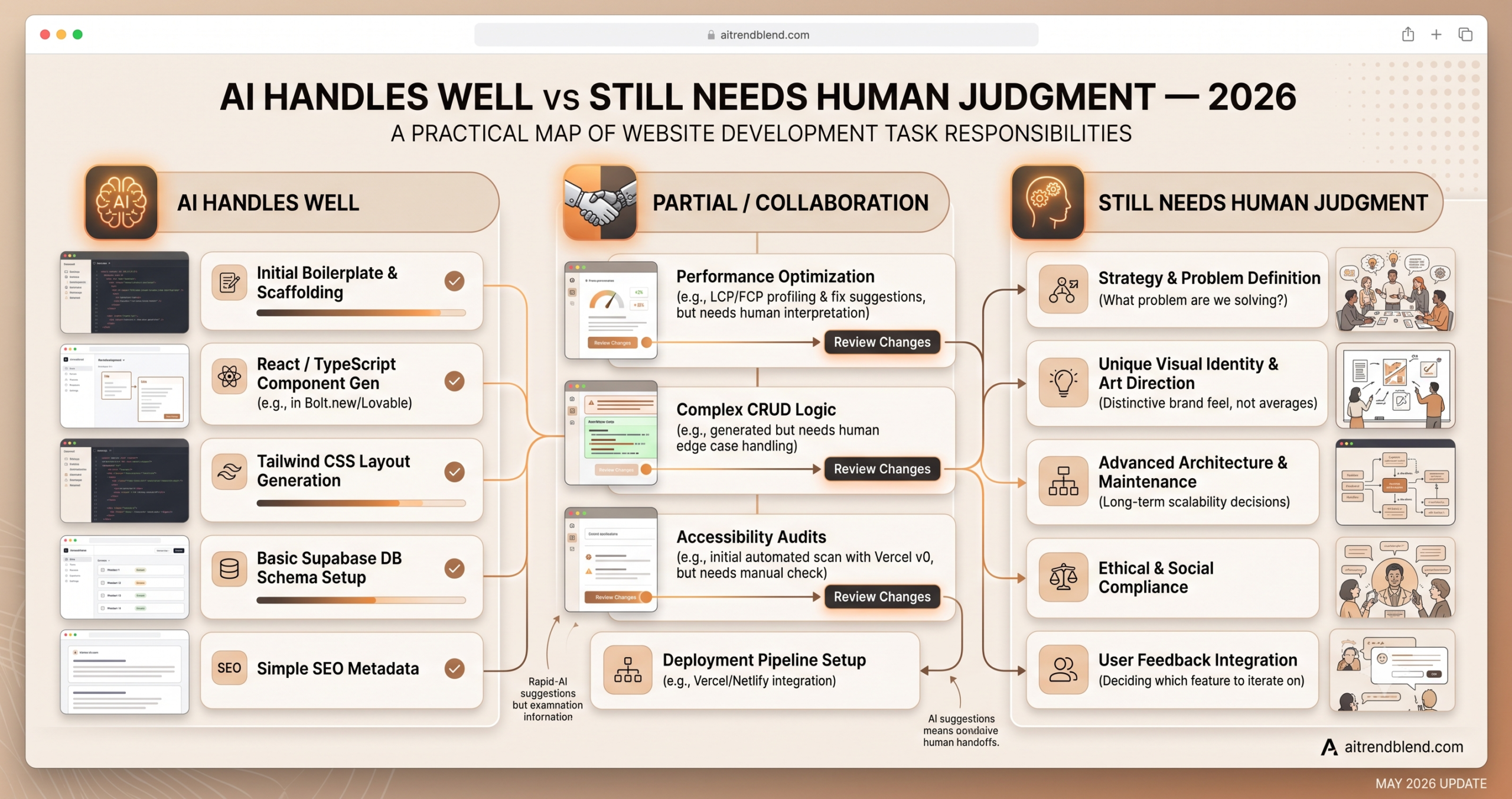
The honest version of this section matters because the marketing around these tools is heavily optimistic. AI can build websites. There are real categories of work where human judgment is still required — not as a disclaimer, but as a practical reality that affects what you can ship.
Performance optimisation is the clearest example. Bolt and Lovable produce working React applications, but they do not optimise for Core Web Vitals, lazy loading, image formats, or bundle size. A site that passes as functional in development can load slowly for real users on mobile connections. This is fixable — but it requires someone who understands what to fix. The AI tools generate code; performance requires profiling real-world behaviour.
Accessibility is a persistent weakness. Generated code often uses semantic HTML correctly in obvious places but misses ARIA labels on interactive components, keyboard navigation on custom dropdowns, focus management in modal dialogs, and colour contrast in dynamically themed sections. None of these failures are catastrophic, and all of them are detectable with an automated accessibility audit — but none of the tools in this guide audit their own outputs for accessibility before handing them to you. That audit is your responsibility, not the tool’s.
The design ceiling is the subtlest limitation. AI tools produce competent, often quite good design — but the genuinely distinctive visual identity that makes a brand recognisable comes from design decisions that require aesthetic judgment, competitive awareness, and an understanding of what a specific audience responds to. Framer AI gets closest to professional design quality; even Framer AI cannot make the judgment call about whether your brand should feel more Stripe or more Linear or more like something entirely different. That remains a human decision, and the AI is working with averages from what it has seen rather than with your specific context.
“AI tools generate code. What they do not generate is strategy — the decisions about what to build, who it is for, and what makes it worth using. Those decisions still belong to the person at the keyboard.” — aitrendblend.com editorial assessment, May 2026
Where This Is Heading — and What to Do Today
The practical skill you have built by reading this guide is not a list of tools — it is a framework for thinking about AI and web development honestly. The tools work. They work better for some project types than others, and the gap between “AI-built” and “developer-built” is narrowest for simple, well-defined websites and widest for complex, custom applications. Neither end of that spectrum is where most real projects live. Most real projects sit somewhere in the middle, which is exactly where the decision about which tool to use actually matters.
These tools are changing the economics of who can ship a website. That is real, and it is genuinely significant. A solo founder who could not afford a developer can now get a working SaaS MVP live in a weekend with Bolt or Lovable. A designer who could not write code can build their portfolio without one using Framer AI. A developer who used to spend three days on boilerplate can use Cursor and v0 to spend three hours instead. Each of those changes is substantial for the person experiencing it.
What still requires human judgment: the architecture decisions that compound over time, the design choices that make a product feel distinctive, the performance and accessibility work that separates a demo from something real users trust, and the strategy behind what you are building in the first place. AI handles the execution layer faster and cheaper than ever before. The thinking layer remains yours.
The tools in this guide will look different in 18 months — better context windows, tighter design output, closer integration between generation and deployment. The question of which one to use will evolve. The question of what you are trying to build, who it is for, and why it deserves to exist — that question will stay exactly where it is, waiting for an answer that no prompt can supply.
Try These Tools Right Now
Start with Bolt.new if you are not a developer, or Cursor if you are. Both have free tiers that let you build something real before spending anything.